Domain aliasing allows you to have two or more websites which display the same content. This can be useful when you have country-specific domain names but would like to display the same contents to the users visiting these websites.
You can host a website on one domain name and then point all the other related domain names to the site. When the users enter the domain alias in the web browser they are displayed the contents of the primary domain but the URL does not change, unlike redirection or domain forwarding. Follow these steps to set-up Domain Alias for your windows hosting from the Plesk panel.
Step 1: Log in to your control panel. Learn how.
Step 2: Navigate to the Order Information view.
Type the Domain Name of the order in the search field on the homepage, select Order from the drop down and click on Search.
In the order information view, click Manage Web Hosting to open the Plesk Control Panel.
Step 3: Adding or Deleting a domain alias
i. Adding a Domain Alias
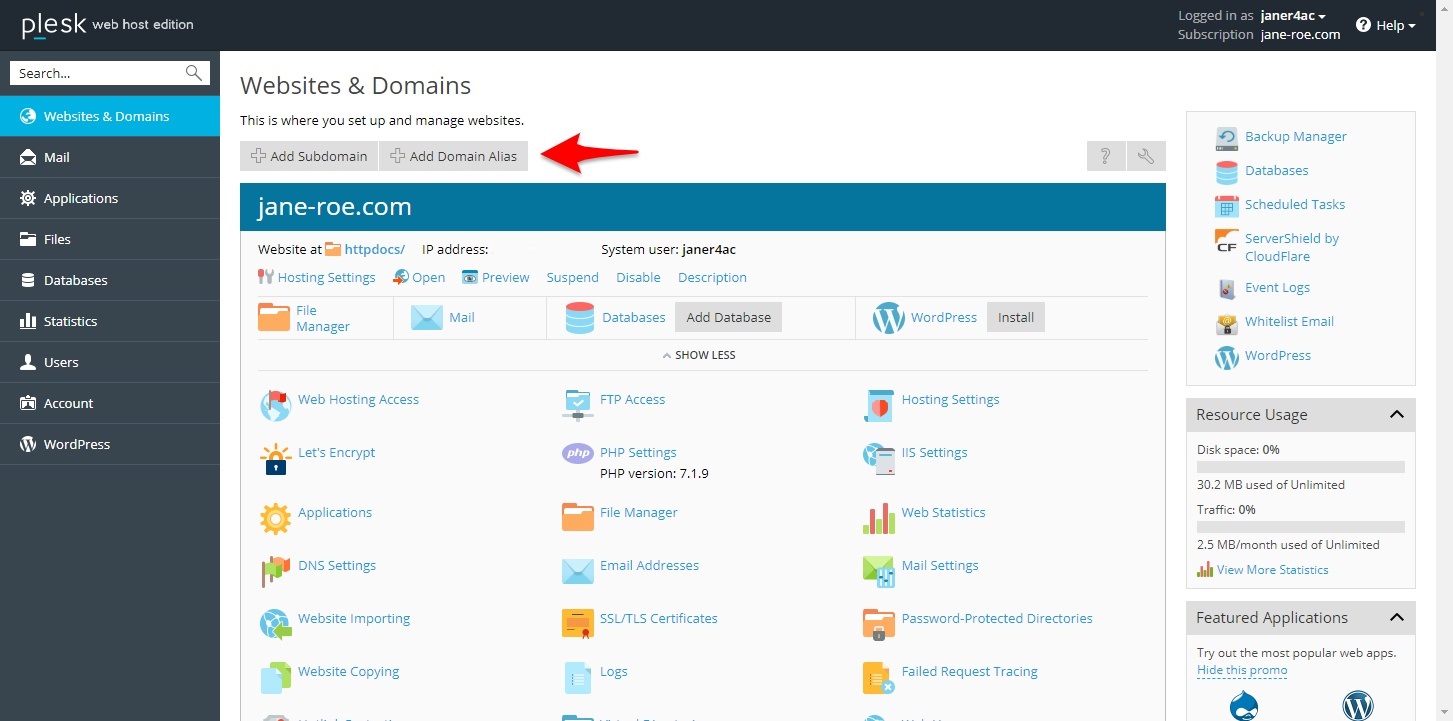
- On the Plesk Panel click + Add Domain Alias.
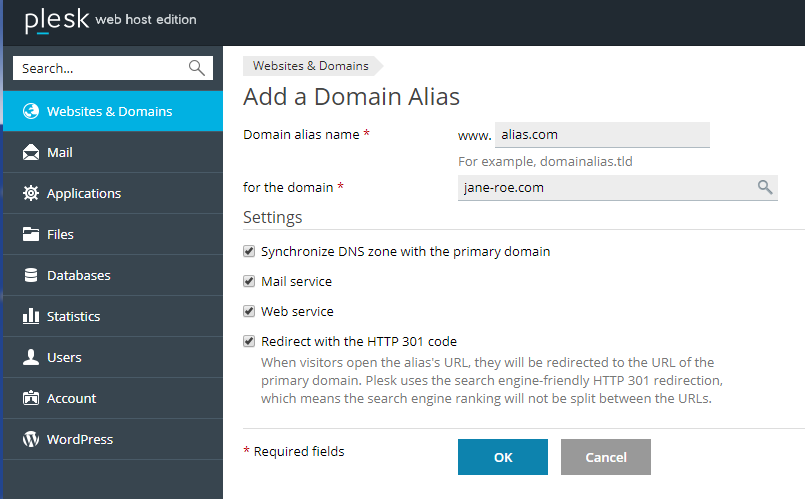
- Enter the Domain alias name, and select the relevant settings by clicking the checkboxes.
- Click OK to add the domain alias.
The options available under settings are:
- Synchronization of DNS zone with the primary domain
When this option is selected, the DNS zone of the domain alias will be in sync with the DNS zone of the primary domain. If you make any changes to the zone of the primary domain it will automatically be updated for the alias.
- Mail Service
When this option is enabled, all the emails sent to the alias mailboxes will be redirected to the corresponding mailboxes on the primary domain name. You cannot create separate mailboxes for your domain aliases.
Example: You have created a domain alias as alias.com and the primary domain name is jane-roe.com. All emails sent to [email protected] will be automatically redirected to [email protected].
- Web service
When this option is selected, the website will open at the alias's URL.
- Redirect with HTTP 301 code
When this option is enabled, the server will redirect the website with an HTTP code of 301 (Moved Permanently). This will prevent the alias to be listed as a separate website for the users and the search engines and help in maintaining the search engine rankings for your website.
ii. Deleting a Domain Alias
- On the Plesk Panel, under the Websites & Domains section look for the domain alias you've created.
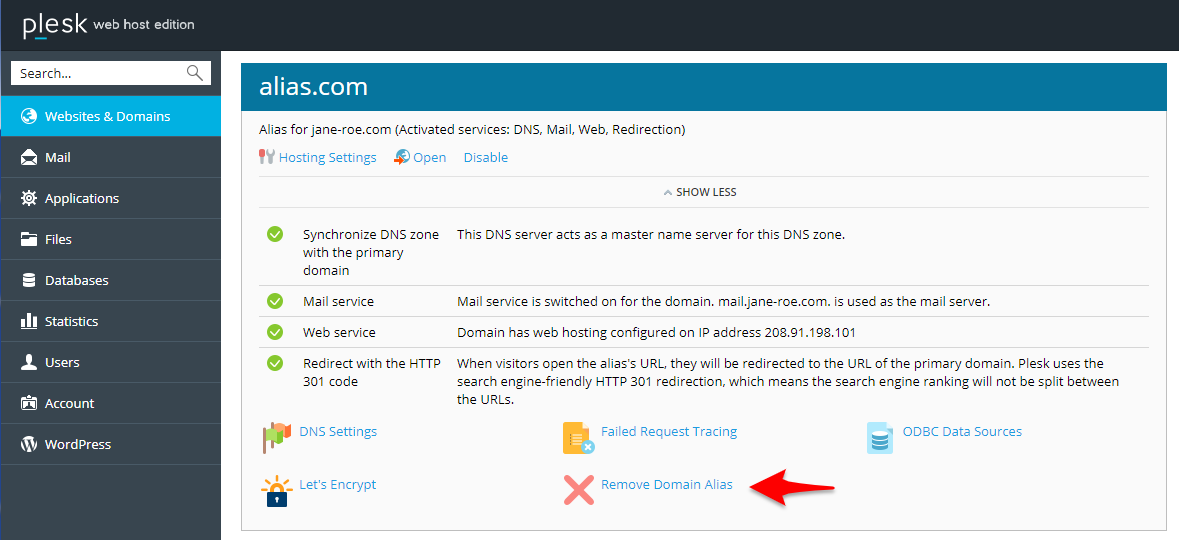
- Click Remove Domain Alias.
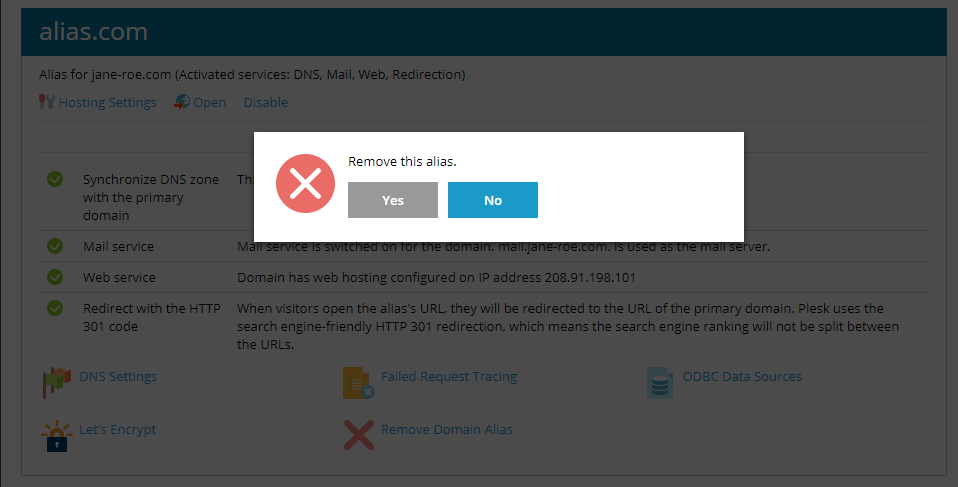
- Click Yes to confirm the removal of alias domain.